Example: How to Follow a Line
In this example, we will show you how to run a line follower on the Leo Rover mobile robot.
What to expect?
After completing this tutorial, your rover should be able to navigate a two-lined track by itself. You will also be able to gather and train neural network model for this task on your own data. Here's an example of our rover driving on the designated track:
Prerequisites
List of components
General requirements
- Any computer which you can connect to the rover via
ssh. - Stock Leo Rover
For running our model (driving rover on track)
- Insulating tape of any color (the more contrast with the ground, the better)
For gathering and training on your data
- Account on a website providing online environment for Jupyter Notebooks (we have used kaggle)
- Game pad for driving the rover (not needed but recommended)
Mechanical integration
As this is one of our examples for stock Leo Rover, you don't have to do any mechanical stuff regarding the rover. The only "mechanical" thing you need to do is to make a two-lined track with insulating tape. Below, there's an example of our track that we used for training the neural network model - image taken from the rover. Try to end up with something like this:
- two lines far enough from each other, so that the rover can drive in between
- color of the lines different from the ground
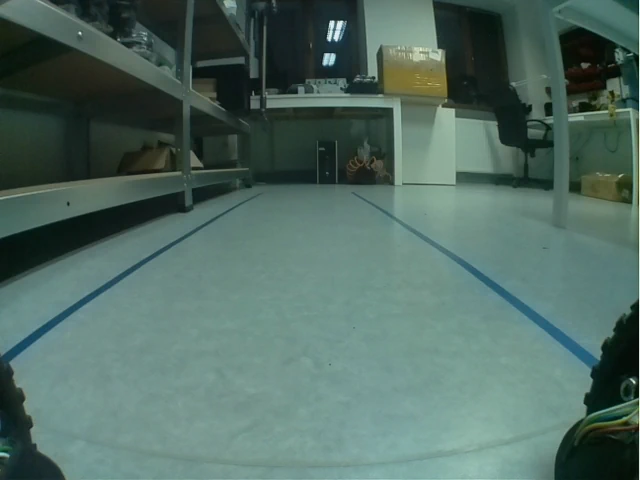
Actually you don't need to use insulating tape. As you will learn later in the tutorial, you only need to provide two lines for the rover, which have different color than the ground. So for example one solution is drawing/printing the lines on paper and stick it to the ground with adhesive tape.
Software integration
To complete those steps, you need to connect to the rover's network first, and then log in using ssh.
Our program uses a neural network model converted to TensorFlow Lite, so you need to install it on your rover too. As you shouldn't install python packages system-wide, we will create virtual environment and install the module inside it:
sudo apt install python3-pip python3-venv
python3 -m venv env_ros --system-site-packages
source env_ros/bin/activate
pip3 install ai-edge-litert
Installing using apt
You can install the package using apt by typing on the rover:
sudo apt install ros-${ROS_DISTRO}-leo-examples
Then you just need to source the ROS workspace:
source /opt/ros/${ROS_DISTRO}/setup.bash
Building from source
You can also get all needed software from our leo_examples GitHub repository. You need to clone it on the rover in the ros workspace directory (if there's no such a directory, then go through the ROS Development tutorial first):
cd ~/ros_ws/src
git clone https://github.com/LeoRover/leo_examples-ros2.git
Now, you need to install all the dependencies for the downloaded packages:
cd ~/ros_ws
sudo apt update
rosdep update
rosdep install --from-paths src -i
Then, you need to source the directory and build the packages:
cd ~/ros_ws
source install/setup.bash
colcon build
This instructions will fail if you don't have a ros workspace on the rover.
If your installation went without any errors, then you have successfully installed required software.
Examples
Running nodes
You need to source the python virtual environment in each terminal on the rover
you want to use for running the nodes. Othervise the nodes will fail because
they won't find the TensorFlow Lite library.
You can source the
environment with command:
source <path_to_env>/bin/activate
Color Mask
Our approach for this task was to get the specified color from the image (color of the tape), and train the neural network on such a mask.
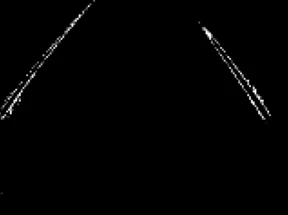
So, the first thing you need to do is to get the color mask values. We have prepared ROS node for this task. To run it, type in the terminal on the rover:
ros2 run leo_example_line_follower color_mask --ros-args --params-file $(ros2 pkg prefix leo_example_line_follower)/share/leo_example_line_follower/config/blue.yaml
To be able to visualize the color mask and choose the values you need to have ROS installed on your computer and be connected to the rover's network.
If you don't have ROS installed, you can follow this guide:
Being connected and having ROS installed, next you have to source the ROS
workspace:
source /opt/ros/${ROS_DISTRO}/setup.bash
Now just run rqt on your computer:
rqt
There, you need to run two things:
Image View(Plugins -> Visualization -> Image View)Dynamic Reconfigure(Plugins -> Configuration -> Dynamic Reconfigure)
In Image View, from the topic drop down choose color_mask topic - this is
the live view of the color mask sampled from the rover's view with current
values for the color mask.
In Dynamic Reconfigure, choose color_mask_finder. You'll see something like
this:
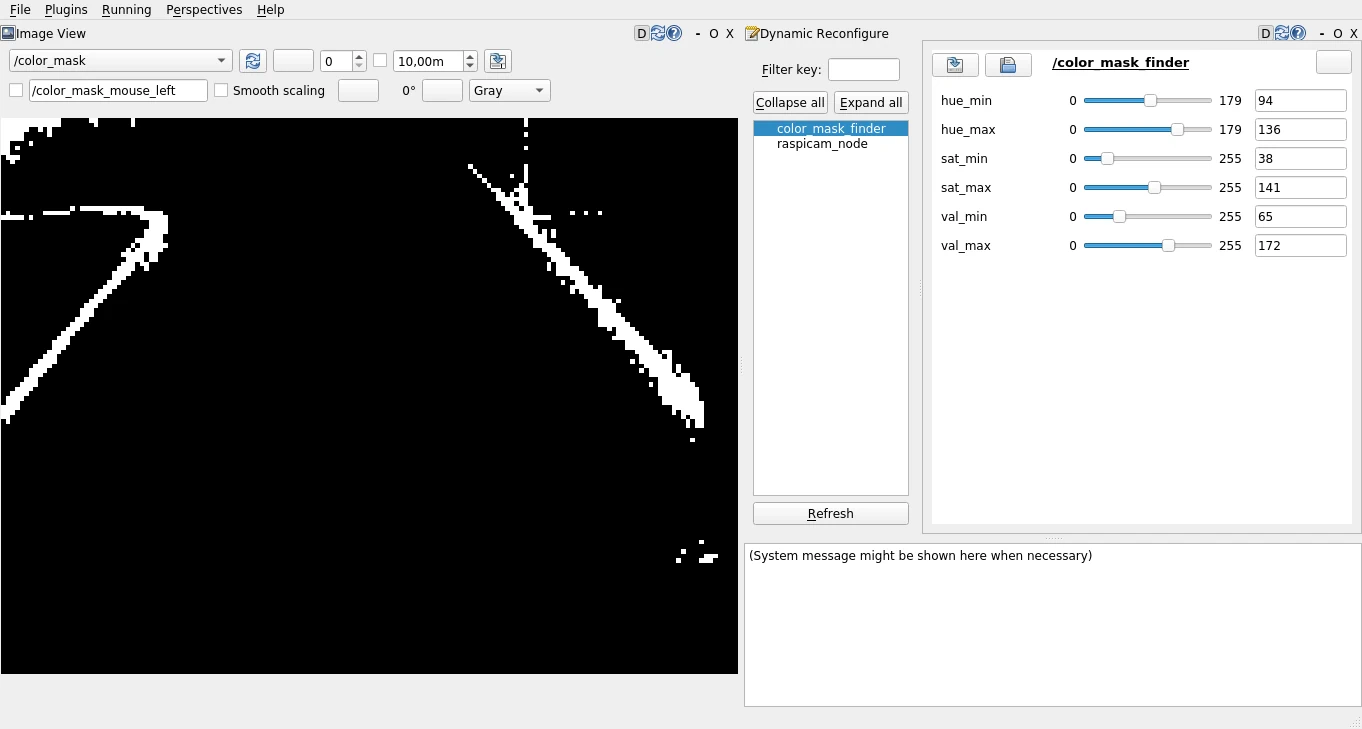
Our color capturing works on thresholding each of HSV components in the image.
In the Parameter Reconfigure you can see sliders for choosing the min and max
threshold values for each component.
If you want to see what colors are
currently in the mask, switch the topic in the Image View to
colors_caught/compressed.
- When choosing the color mask values from scratch, start by setting all MIN sliders to 0, and all MAX sliders to maximum values. Then adjust the sliders one by one, until the only white object in the mask is your track (tape). Color mask visible in rqt is already preprocessed image as neural network input - this is what the model will base its prediction on.
- When you inspect the command we used for starting the color mask node you can notice we specify the params file. It holds starting values for the thresholding parameters. You can use this way to provide your own file with starting setup.
- The node supports dual thresholding ranges of hue component. The color mask
captures:
- objects with hue value in range [hue_min, hue_max], when
hue_minis less thanhue_max - objects with hue value in either [0, hue_max] or [hue_min, 179] range,
when
hue_minis greater thanhue_max- such solution is useful for capturing colors with wide hue spectrum - e.g. red.
- objects with hue value in range [hue_min, hue_max], when
When you are satisfied with your color mask, you can stop both rqt and the node (with ctrl+c). Your chosen values will be printed in the terminal.
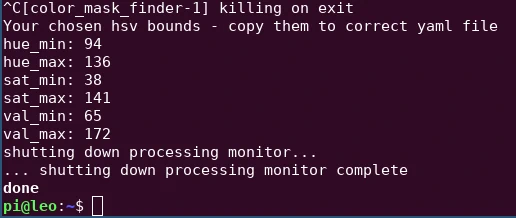
You need to save them in the yaml file (best if you place it in the config directory of the leo_example_line_follower package). You can do this with nano. Copy the printed values (using the mouse or ctrl+shift+c) and type on the rover
touch ~/ros_ws/src/leo_examples-ros2/leo_example_line_follower/config/my_mask.yaml
nano ~/ros_ws/src/leo_examples-ros2/leo_example_line_follower/config/my_mask.yaml
Then, paste the values (ctrl+shift+v or use the mouse), save the file (ctrl+o) and close it (ctrl+x).
It's important that the file has to have the same structure, as our config files. All the indentation and namings are really important for the node to successfully load the values. It will be best if you start with such file contents and swap values with the ones obtained from the color mask node.
/**:
  ros__parameters:
    hue_min: 94
    hue_max: 136
    sat_min: 38
    sat_max: 141
    val_min: 65
    val_max: 172
If you didn't build the package from source and therefore you can't create your file in the destination we recommend, just create the file anywhere on the rover. You will be able to provide it anyway for all the nodes that need it. You just need to know the absolute path to your file.
Line Follower
Running the follower is very simple. You need to be connected to the rover via
ssh (the same as with color mask node). Once you are logged in to the rover,
you can launch the program using ros2 launch command:
ros2 launch leo_example_line_follower line_follower.launch.xml
As you run this command, the robot won't move until you change the
follow_enabled parameter. It's a feature that allows to easily stop the rover
and by default it's set to false.
To make the robot start driving
automatically you need to call the program like this:
ros2 launch leo_example_line_follower line_follower.launch.xml follow:=true
The file has a few launch arguments provided to run the model with your data
(e.g. your color mask file).
The most important ones are as follows:
color_mask_file- path to file with the color mask (HSV) valuespub_mask- flag specifying whether or not to publish color mask while driving (might slow the payload but useful for debugging)model- path to neural network model (there is amodelsdirectory with couple models prepared by us, which you can choose from)follow- flag specifying if the robot should start following the track from the node startup. By default it's set tofalsewhich means, the robot will wait for manual change of the parameter to start driving.
Every argument is documented, you can see them, their descriptions and default values by running:
ros2 launch leo_example_line_follower line_follower.launch.xml -s
Every argument has default value, so you don't need to enter every argument when running the line follower.
When you want to change the value for specific argument, you can do this by adding to the command <arg_name>:=<value>.
As a nice feature you can run rqt the same way as in color mask node but from
the node list choose line_follower. This way you will be able to see the
current color mask that works as input to the neural network model and also
change the color mask if needed during runtime.
In the available parameters
you can also use follow_enabled and publish_mask to quickly enable or
disable the robot's movement and color mask publishing.
Remember that due to light reflection from the ground, the rover won't stay on
the track forever, so make sure you are ready to stop it (physically or with
follow_enabled parameter), or help it, when it goes off the track.
What next?
Making your own model
Gathering data
For gathering the data, you'll need to run our data_saver node. You need to
run it on the rover by using the ros2 launch command.
The node has one required argument - duration which specifies the time period
(in seconds) the data will be recorded in. You can also specify the output
directory for the recorded data using the output_dir argument. So, for
example, your command can look like this:
ros2 launch leo_example_line_follower record_data.launch.xml duration:=30 output_dir:=test_drive
This will record data for 30 seconds and place all the recorded data in the
test_drive directory (the node will create the directory if it doesn't exist).
You don't have to record all the data into one directory. You can record the data to many directories, as you will need to process them later anyway. So you can run this command multiple times with changed arguments.
First, the node waits for twist messages from cmd_vel topic, and after it
gets any message on this topic, it'll start recording data (the only data that
will be recorded is when the rover is moving - if you're staying in place, no
data will be recorded).
After recording the data, in your output directory, you'll find images saved
from the rover, and one file labels.txt. The file contains multiple lines of
format img_name:label, where the label is a tuple of two floats representing
linear and angular (respectively) velocity values of the rover in the situation
visible in the specified image.
This is the only part, where you might need game controller. It's just easier to drive over track, and stay in the lines - collect good data for the neural network - with game controller, than the joystick on the web page, but you can still do this using the Leo UI and keyboard.
If the name for the output directory, that you have provided is not an absolute path (starting with "/"), the directory will be put under home directory (by default /home/pi). If you want it to be somewhere else, you need to give the absolute path.
Preparing the data
When you have your data recorded, you have to collect it in the correct
structure. To do so, you need to run our prepare_data script with the
ros2 run command.
The node has three flags which you have to specify:
-t/--train_data- paths to directories with data for training the neural network-v/--valid_data- paths to directories with data for validation during the training-z/--zip_file- name of the zip file with your data that will be created in the end
So, for example, your command can look like this (if you're running it in the home directory):
ros2 run leo_example_line_follower prepare_data -t train_dir1 train_dir2 -v val1 val2 -z my_dataset.zip
Unlike launch, ros2 run commands run in your current working directory, so
for example: If you run the node in /home/pi/test directory and provide names
for the -t and -v flags as train and valid, then the node will look for
/home/pi/test/train and /home/pi/test/valid directories.
As the script finishes, it will create your zip file with processed data in the same directory that it was run. Such data is ready to be uploaded to your notebook.
As we have used kaggle, we know that providing zip file is enough for the dataset as it get s unpacked automatically. If you use other platform you may need to unpack the files by hand.
Training the data
This part might be a bit different if you use different platform than kaggle (regarding uploading a file), but most of them will be similar, as you may need to change some lines of code, and run some cells.
Having your data ready, you need to upload it to your notebook. You get a copy of our notebook when cloning repository, but you can also get it under this link.
Once you have the notebook, you can upload the data using the Upload button
in the Input section in upper-right corner.
Then, just select the New Dataset button, and drag (or browse for) your zip file (you also need to provide a name for the dataset).
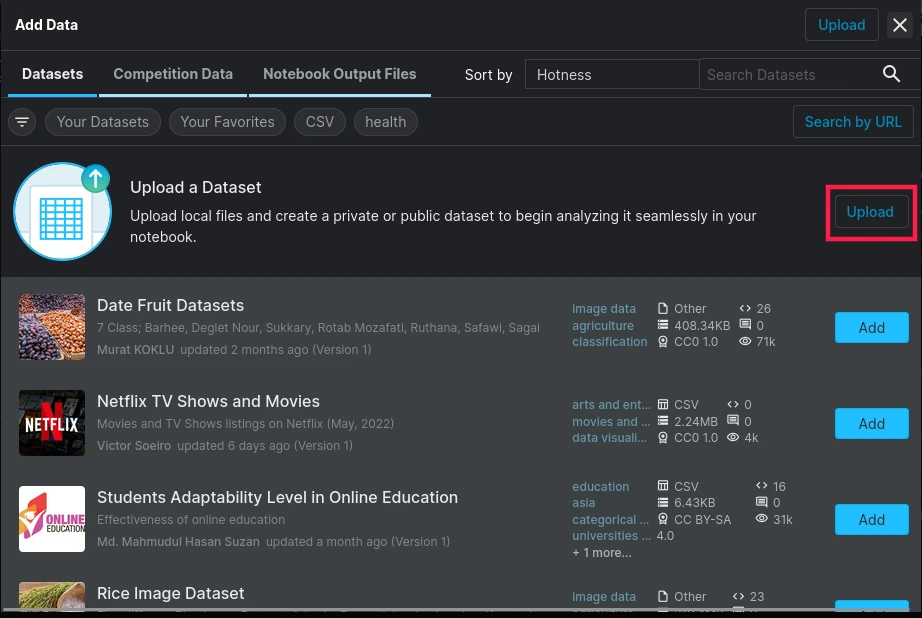
If you have used the Copy & Edit on Kaggle to get our notebook, then in the
datasets you have our dataset that has been added automatically.
To add it
manually use Add input option with Datasets selected and type in the
search bar LeoRover and you will see, our dataset. Click the plus button, and
the dataset will be added to your notebook.
Once it's uploaded to the notebook, you should see something like this:
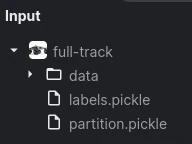
Now, you just have to run all the cells up to the "Custom tests" section to begin the training.
There is one cell, with variables that might need to change. Each of them has provided description in a comment. Go through it before running, and check if you need to change something.
When the training is finished, you'll see your tflite model (the name may
differ if you've changed the correct variable in the correct section) in the
output section.
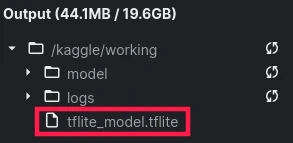
The only thing that you need now is to download the file and place it on the rover. You can download the model by clicking the three dots that show up when you go with the cursor over the file.
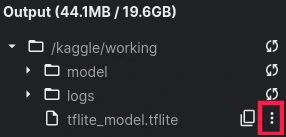
Then, just press Download and the model will be downloaded. Now, you have to place it on the rover, you can follow the instructions from this tutorial.
In the last section, notebook provides two functions to visualize model features. Using them, you can visualize kernels from convolutional layers and feature maps. Both functions are documented in the notebook, so just read them to see all their parameters